
Begin with the work request
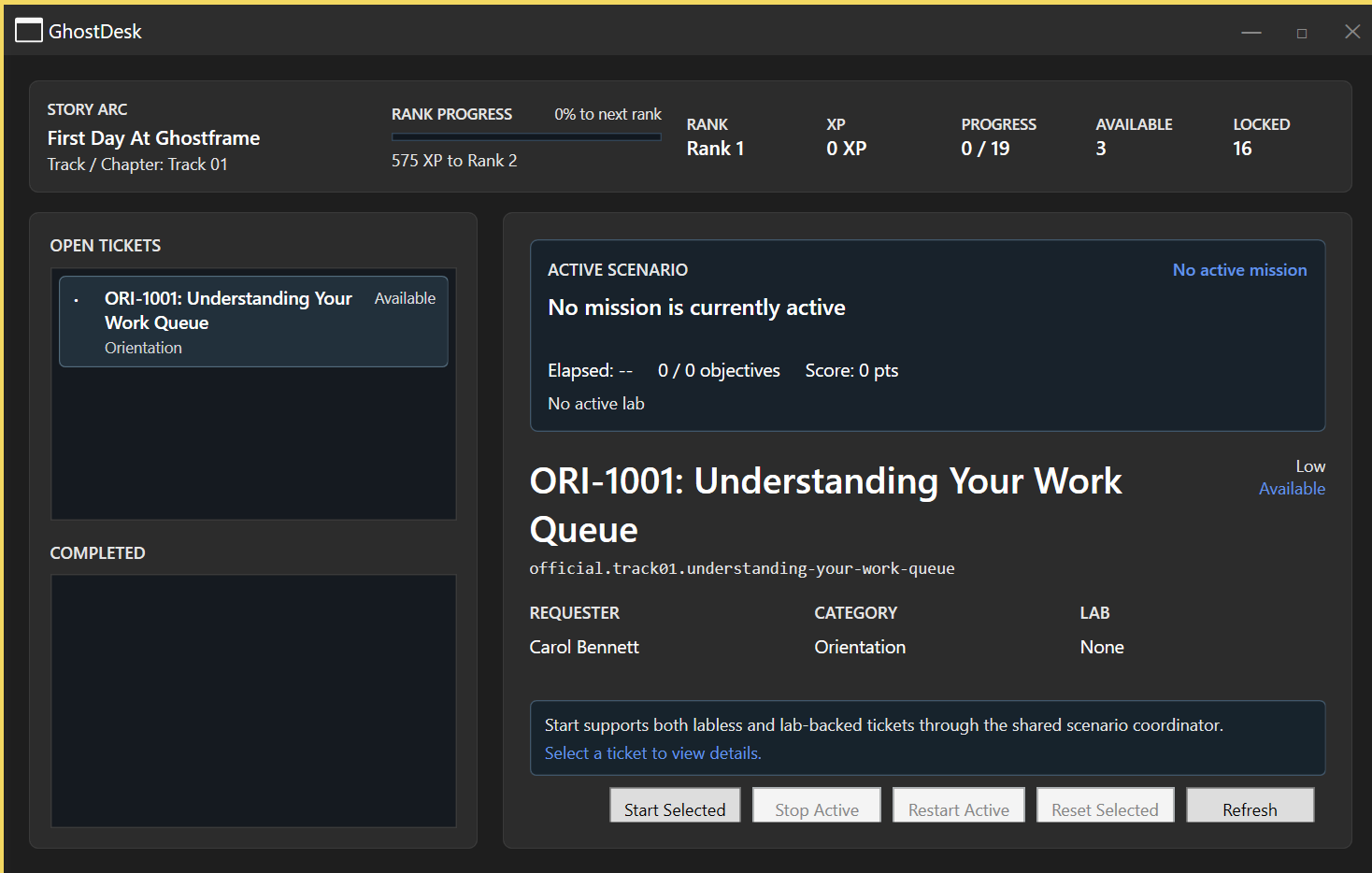
GhostDesk presents training missions as simulated helpdesk and incident tickets. Select an available ticket and read its summary, requester, priority, known information, required actions, evidence requirements, and recommended tools. These details establish the problem you have been asked to investigate and the boundaries of the work.
Start the selected ticket when you are ready. Keep the active scenario distinct from a ticket you are merely browsing: GhostDesk displays both selected-ticket information and active-scenario progress. The Mission Panel provides the briefing and objective state for the running mission.
This guide focuses on the reasoning between those steps: how to turn a reported symptom into evidence, make a supported change, and check the outcome. For modes, scenario setup, and progression, see Labs & missions.
Ask a different question of each view
A report such as “the service cannot be reached” gives you a symptom. Several causes can produce it. Use the views that answer your next question, and record the active prompt, target, time, and exact result alongside each observation.
- Logs and time:
journalctl -n 20shows recent events;journalctl -u <unit>narrows the journal to a service. Compare event time and severity with the reported action.dateanduptimedistinguish wall time from elapsed runtime. - Processes and services:
pslists active simulated process records, whileps -aincludes exited history.systemctl status <unit>andsystemctl diagnose <unit>give service state and supported diagnostics. A process record alone does not establish client reachability. - Identity and file access:
whoamiandpwdestablish the user and location. Inspect the relevant virtual file and its supported ownership/mode information before changing access. A missing file, wrong path, denied permission, and read-only provider are different problems. - Connectivity: inspect interfaces and routes with
ipandroute, then compare naming, reachability, and listener evidence with the supported network tools. A successful ping does not establish that an application service is listening.
GhostDesk supplies the work request and progress view. You gather and interpret the evidence using GhostFrame’s tools; do not assume the ticket view automatically identifies the cause or repairs the environment.
Separate an observation from a conclusion
Write down what you observed before deciding why it happened. “The unit reports inactive” is evidence. “The configuration is broken” is a hypothesis until another observation supports it. A name that fails to resolve, an unreachable address, a blocked port, and a denied file read each suggest a different next check.
Compare related views rather than treating one status label as the whole answer. A service may be active while the client has no usable path. A listener may exist while firewall policy prevents a connection. A command can succeed without proving that the intended content was retrieved.
The systems guide, networking guide, and filesystem guide explain the supported observations in more depth.
An actual ticket: The Missing Transfer Service
The current beta includes OPS-2001: The Missing Transfer Service in the Operations and Monitoring sequence. It becomes available after the first-day assessment. This is a labless ticket: its instructions identify tftp.service, a manual service, and the expected UDP/69 listener on the base GhostFrame server.
The ticket asks you to inspect status, review service-specific diagnostics before remediation, start the unit through the normal privileged service action, and inspect the UDP listener afterward. It does not ask you to load a lab, edit TFTP configuration, or remove transfer content.
The ticket’s objective checks observe successful matching command actions. You still need to read the output and verify the actual listener. A checked objective does not substitute for interpreting the service or socket state. For a replay, follow the ticket’s preservation instructions and defer it if another workflow is using TFTP.
Illustrative investigation: an unavailable web page
This is a reasoning exercise, not a claim that the beta contains a GhostDesk ticket with this exact title or workflow. Imagine a permitted practice scenario where a simulated intranet page cannot be retrieved.
- Record the symptom and target. Does the failure occur for a name, an address, or one specific page?
- Establish the client’s interface, address, and route. If the problem uses a hostname, inspect supported name-resolution evidence before blaming the server.
- Compare reachability with an appropriate port probe and HTTP request. Use the enabled service’s status and recent logs to investigate the next layer.
- If the evidence points to virtual-file access or missing content, check the active identity, path, and supported permissions. Avoid changing permissions merely to silence an error.
- Make only the supported change justified by the evidence and the scenario instructions. Repeat the original request from the same client context, then check the related service or listener view.
The useful outcome is a short explanation connecting the symptom, evidence, cause, change, and repeated test. The tools help you observe; the reasoning is yours.
Verify the fix and report the limits
Before changing anything, note the original state and follow the ticket’s preservation instructions. Keep changes within the task: restarting an unrelated service or replacing a whole file can introduce a second problem. Permission-sensitive actions use the supported administrative route and remain subject to the current simulation’s limits.
After a change, repeat the operation that originally failed. Check the relevant process, service, listener, log, or file view as supporting evidence. State what now works, what you changed, and any uncertainty that remains. If you cannot demonstrate the expected result, keep investigating rather than calling the symptom resolved.
Follow the ticket’s evidence requirements. Some tickets track successful actions; others require a supported submission. Review objective state and any supplied debrief. Do not assume GhostDesk accepts an arbitrary work note as graded evidence or automatically evaluates every explanation.
Readable notes and repeatable checks are useful even when they are not an objective. They let you explain the outcome to another learner and distinguish a verified result from a promising guess.